Enabling Google Authenticator for SSH Logon on Linux Server
This guide explains how to set up Google Authenticator for Two-Factor Authentication (2FA) on a Linux server for SSH logon.
Prerequisites
- A Linux server (Ubuntu/Debian/CentOS, etc.)
- SSH access to the server
- A smartphone with the Google Authenticator app installed
Steps
1. Install Google Authenticator PAM Module
For Ubuntu/Debian-based systems:
sudo apt update
sudo apt install libpam-google-authenticator
For CentOS/RHEL-based systems:
sudo yum install epel-release
sudo yum install google-authenticator
2. Configure the PAM (Pluggable Authentication Modules)
Edit the PAM configuration file for SSH:
sudo vim /etc/pam.d/sshd
Add the following line to the file:
auth required pam_google_authenticator.so
3. Configure SSHD to Allow PAM Authentication
Edit the SSH configuration file:
sudo vim /etc/ssh/sshd_config
Make sure the following settings are configured:
-
ChallengeResponseAuthentication should be set to
yes:ChallengeResponseAuthentication yes -
UsePAM should be set to
yes:UsePAM yes
4. Restart the SSH Service
After modifying the SSH and PAM configuration files, restart the SSH service for the changes to take effect:
sudo systemctl restart sshd
5. Set Up Google Authenticator for Your User
Run the following command as the user you want to set up 2FA for:
google-authenticator
This will trigger a series of prompts:
- Do you want authentication tokens to be time-based? (Yes)
- Do you want to update your “~/.google_authenticator” file? (Yes)
- Do you want me to disallow multiple uses of the same token? (Yes)
- Do you want to increase the verification time window? (Yes)
It will then generate a QR code and show secret keys. Scan the QR code with the Google Authenticator app on your smartphone.
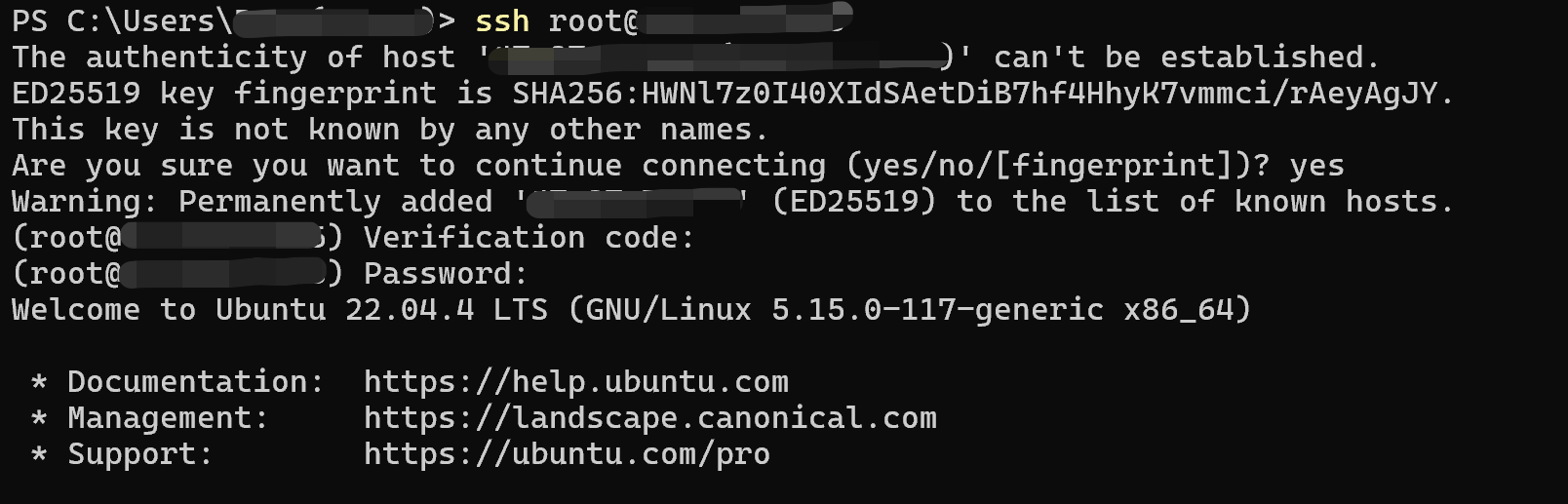
6. Testing the Setup
To test, open a new SSH session and log in. You will be prompted for:
- Your regular password.
- A verification code from your Google Authenticator app.
#!/bin/bash

# Ensure the script is run as root
if [ "$(id -u)" -ne 0 ]; then
    echo "This script must be run as root"
    exit 1
fi

# Step 1: Install the required packages
echo "Installing required packages..."
yum install -y epel-release
yum install -y google-authenticator pam_google_authenticator

# Step 2: Configure SSH Daemon
echo "Configuring SSH Daemon..."
sed -i 's/^#ChallengeResponseAuthentication no/ChallengeResponseAuthentication yes/' /etc/ssh/sshd_config
sed -i 's/^#UsePAM yes/UsePAM yes/' /etc/ssh/sshd_config

# Step 3: Configure PAM to use Google Authenticator
echo "Configuring PAM..."
echo "auth required pam_google_authenticator.so" >> /etc/pam.d/sshd

# Step 4: Enable Google Authenticator for the current user
echo "Enabling Google Authenticator for the current user..."
su - $SUDO_USER -c 'google-authenticator -t -d -f -r 3 -R 30 -w 3'

# Step 5: Restart SSH service
echo "Restarting SSH service..."
systemctl restart sshd

# Step 6: Display instructions for the user
echo "Google Authenticator has been enabled for SSH login."
echo "Follow these steps to complete the setup:"
echo "1. Open the SSH session in your terminal."
echo "2. During login, you will be prompted for the verification code from your mobile device."
echo "3. Use Google Authenticator app to scan the provided QR code and enter the code on prompt."

echo "You can test the setup by trying to SSH into this machine again."